Video camera: Difference between revisions
From Maemo Wiki
Jump to navigationJump to search
imported>dneary No edit summary |
imported>amigadave add link |
||
| (4 intermediate revisions by 3 users not shown) | |||
| Line 1: | Line 1: | ||
= Using the Video Camera = | == Using the Video Camera == | ||
This page describes how to activate video mode of your [[Nokia N900|N900]] camera and record a video. | |||
[[Image:Video_1.png|thumb| | # Open the camera shutter, or start the Camera application in the applications menu | ||
# The capital "A" icon on the right-hand side indicates that the camera is currently in automatic photo mode.[[Image:Video_1.png|center|thumb|400px|alt="N900 camera default set-up"|N900 camera default set-up]] | |||
[[Image:video2.png|thumb| | # By tapping the video mode indicator, you can select "Automatic video" mode, setting your camera in video mode.[[Image:video2.png|center|thumb|400px|alt="Selecting camera mode"|Selecting camera mode]] | ||
# The Mode button now shows a video camera, indicating that the camera is in video mode. | |||
# Lightly press the capture button on your device (the button with a camera icon) to focus on your subject[[Image:video3.png|center|thumb|400px|alt="Video recorder mode"|Video recorder mode]] | |||
[[Image:video3.png|thumb| | # Firmly press the capture button to start recording. Press it again to stop recording. You will have the opportunity to tag or share your video. | ||
# Your video can be viewed in the media player. | |||
[[Category:Beginners]] | |||
[[Category:N900]] | |||
Latest revision as of 11:12, 26 January 2011
Using the Video Camera
This page describes how to activate video mode of your N900 camera and record a video.
- Open the camera shutter, or start the Camera application in the applications menu
- The capital "A" icon on the right-hand side indicates that the camera is currently in automatic photo mode.
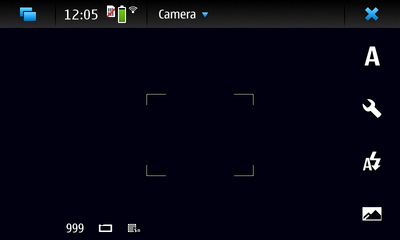
N900 camera default set-up - By tapping the video mode indicator, you can select "Automatic video" mode, setting your camera in video mode.
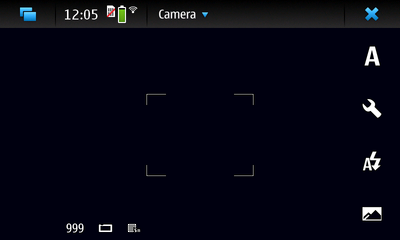
Selecting camera mode - The Mode button now shows a video camera, indicating that the camera is in video mode.
- Lightly press the capture button on your device (the button with a camera icon) to focus on your subject
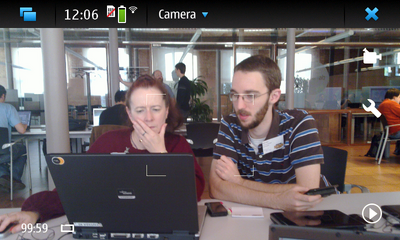
Video recorder mode - Firmly press the capture button to start recording. Press it again to stop recording. You will have the opportunity to tag or share your video.
- Your video can be viewed in the media player.


