This document explains how to develop applications for the Maemo platform using the Python programming language. To use the document, you must have a basic knowledge of Python and PyGTK (advanced knowledge is not required, but you must be able to write simple GTK programs in Python).
Prerequisites
Before you start to write your own Python applications for Maemo, perform the following tasks:
Learn the basics of the Maemo platform For more information, see the Overview of the Maemo Platform section in Maemo 3.0 Tutorial[1]
Set up the Maemo development environment The Maemo development environment is where you run your Maemo applications. For more information, see Setting Up and Testing Development Environment section in Maemo 3.0 Tutorial[1]. The tutorial assumes that you are developing from Scratchbox instead of directly using a Maemo device (such as a Nokia 770).
Python limitations in Maemo
As handheld devices have limited resources (when compared to desktop or notebook computers), several modules have been removed from Maemo's Python in order to reduce its footprint.
The import command will import .pyo files even if the interpreted is called without the -O or -OO option. This is a difference from the standard Python behavior.
Installing Python
Unfortunately, Maemo SDK and Maemo devices (Nokia 770 and N800, so far) doesn't come Python-ready out of the box. But the good news is that it's pretty easy to install Python on them.
In the Scratchbox console, first make the file executable by running the chmod +x ./hello_world_1.py command, and then run the example by typing run-standalone.sh ./hello_world_1.py. Figure 1 illustrates the results of the run command:
Figure 1: Plain PyGTK "Hello World!" application
You can see that the plain PyGTK code already "works" on Maemo. However, do not use plain PyGTK code or rely on the assumption that any PyGTK code "works" on Maemo. In this tiny example program, the obvious sign of misfit in the Maemo environment is that its borders (skin graphic area) are broken (look at the top corners).
The reason for using the run-standalone.sh command to execute the application is that it adds the Hildon theming. Figure 2 illustrates how the application looks if run without the run-standalone.sh command:
Figure 2: Application without the Hildon theme
The run-standalone.sh command is only available if you run applications from the Scratchbox console.
HildonWindow Class
The HildonWindow class overloads the GtkWindow class, providing the Hildon theme (look and feel) for top level windows. In order to use the facilities provided by the Hildon framework (and to integrate cleanly in it), the application must use a HildonWindow instead of a GtkWindow. With a HildonWindow class the application has, for example, access to Hildon menus and toolbars.
The required code change is simple: replace the GtkWindow with HildonWindow and import the hildon module. The following example illustrates the required changes (also downloadable here):
Note how the borders are now drawn in the right way, since the program is using the HildonWindow class.
HildonProgram Class
The HildonProgram class is a programmer commodity used to apply program-wide settings to all Hildon windows used by the application (for example, this allows you to have a common menu and toolbar on all windows). In addition, HildonProgram also manages other program-wide issues, such as hibernating.
The example "Hello World" application has no use for a HildonProgram object, but it is added to the following example (also downloadable here), simply to illustrate how a regular Hildon application is structured.
When running the application, the result is the same as shown in Figure 3.
Porting existing applications
This section describes the issues involved in porting an existing PyGTK application to Maemo. The porting of a real application is illustrated with step-by-step instructions.
The example application is gPodder (version 0.8). It was chosen because it is reasonably simple, has a small, uncluttered interface and contains most of the important issues involved in porting PyGTK applications to Maemo.
A great part of the porting effort is spent making an application use and obey the Hildon UI style (such as making use of hardware keys and Hildon-specific widgets). As a result, make sure that you are familiar with the Hildon UI style before you start porting. For more information, see Hildon User Interface Style Guide[2].
Installing and running gPodder in Maemo
To install and run gPodder:
Download the source package [gpodder-0.8.0.tar.gz here] or directly from the project's page, http://gpodder.berlios.de/.
Extract the gpodder-0.8.0.tar.gz file. The gpodder-0.8.0 directory will be created.
In the gpodder-0.8.0 directory, use the Scratchbox console to run the following commands: python2.5 setup.py install and run-standalone.sh gpodder
The Scratchbox console can display some GLib warnings, but you can ignore them. Figure 4 illustrates the screen you see after running the commands:
Figure 4: gPodder running on Maemo without any modifications
This means that gPodder 0.8 works on Maemo without any modifications. However, it is not a Maemo application yet, and the steps in the following sections are required to make it fit cleanly in the Maemo environment.
gPodder code overview
This section gives a brief overview of gPodder's source code. The purpose of the overview is to make it easier to understand the code changes implemented in the following sections.
Most of the code changes are made in the gpodder-0.8.0/src/gpodder/gpodder.py file. It contains the following classes:
<source lang="python">
class Gpodder(SimpleGladeApp)
class Gpodderchannel(SimpleGladeApp)
class Gpodderproperties(SimpleGladeApp)
class Gpodderepisode(SimpleGladeApp)
class Gpoddersync(SimpleGladeApp)
class Gpodderopmllister(SimpleGladeApp)
</source>
Open the gpodder-0.8.0/data/gpodder.glade file using the Glade User Interface Designer (another option is Gazpacho). You can see that there is one class for each GtkWindow defined in it, as shown in Figure 5:
Figure 5: Windows defined in gPodder's glade file
In addition to loading the window description from gpodder.glade, the SimpleGladeApp class also makes all window elements directly accessible from self, ignoring the element's hierarchy. Figure 6 illustrates part of the element's hierarchy for the gPodder window, and how to access the elements from inside a Gpodder method.
The first code change in the porting exercise is to make gPodder use HildonProgram and HildonWindow classes instead of the GtkWindow class.
Start by modifying the gpodder.py file (in the gpodder-0.8.0/src/gpodder directory). Since you want to use Hildon elements, you have to import its module. The following example illustrates the import, with ++ indicating new lines:
Second, add a HildonProgram (self.app) and a HildonWindow (self.window). The following example illustrates the added objects:
115 |        if libgpodder.isDebugging():
116 |            print "A new %s has been created" % self.__class__.__name__
117 |
 ++ |        self.app = hildon.Program()
 ++ |
 ++ |        self.window = hildon.Window()
 ++ |        self.window.set_title(self.gPodder.get_title())
 ++ |        self.app.add_window(self.window)
 ++ |
 ++ |        self.vMain.reparent(self.window)
 ++ |        self.gPodder.destroy()
 ++ |
 ++ |        self.window.show_all()
 ++ |
118 |        #self.gPodder.set_title( self.gPodder.get_title())
119 |        #self.statusLabel.set_text( "Welcome to gPodder! Suggestions? Mail to: thp@perli.net")
120 |        # set up the rendering of the comboAvailable combobox
The gPodder class (self) has its close_gpodder method connected to the destroy signal from the original gPodder Gtk window. This means that you have to remove the connection from gPodder and put it in the new Hildonwindow (self.window).
To remove the signal connection from the original gPodder Gtk window, open the gpodder.glade file (in the gpodder-0.8.0/data directory) and remove the connection, as shown in Figure 7.
Figure 7: destroy signal for gPodder window
The following example illustrates how you connect Gpodder.close_gpodder to the new HildonProgram (self.app):
The change from GtkWindow to HildonProgram/HildonWindow is now complete. Figure 8 illustrates the results if you run gPodder again.
Don't forget to run python2.5 setup.py install before lauching gPodder again, otherwise you will still be using the old, unmodified, version.
Figure 8: gPodder using HildonProgram and HildonWindow
Note that the window fits in the screen without any broken borders, just as the "Hello World" application did.
Changing to HildonWindow menu bar
This section describes how you make gPodder use Hildon's title area as its menu bar, instead of using its own GTK+ menu (a GtkMenuBar object).
In the gpodder.glade file, you can see that the gPodder window has a menu bar (a GtkMenuBar object) called mainMenu. You must move all its children (menuPodcasts, menuChannels and menuHelp) to the HildonWindow's menu and then destroy the empty mainMenu menu.
To achieve this, add the following lines to the gpodder.py file:
Hildon has a set of widgets for common operations, such as a color selection dialog, file chooser dialog and a time picker. Most of them provide the same functionality (or extension) as the existing GTK+ widgets. For example, HildonFileChooserDialog has the same purpose as GtkFileChooserDialog.
Replace the GTK+ widgets with the Hildon ones whenever possible, since the Hildon widgets were designed to obey Maemo's restrictions and peculiarities.
gPodder uses a GTK+ file chooser dialog when users export their channel lists. It doesn't fit well into Maemo's environment as you can see from Figure 10.
Figure 10: gPodder using GTK's file chooser dialog
Make it use a HildonFileChooserDialog instead. The following example illustrates the code changes needed in gpodder-0.8.0/src/gpodder/gpodder.py:
Figure 11 illustrates the results when you select Menu > Channels > Export List:
Figure 11: gPodder using Hildon's file chooser dialog
Adjusting the Glade interface to fit into a small screen
The following change to the interface layout is necessary to make it fit into the relatively small Maemo screen:
Main window (gPodder) Make the tab names shorter. Replace “Downloaded Podcasts” with “Downloaded” and “Available Podcasts” with “Podcasts” to make the tab names stay within screen boundaries. Figure 12 shows the tab names before (left) and after (right) that change.
Figure 12: gPodder with shortened tab names
Using hardware keys
Maemo applications must use the available hardware keys to improve their usability. Most applications don't have use for of them, of course, but try nonetheless to use those that make sense in your program, giving it the usability expected from a proper Maemo application.
The Full screen hardware key is particularly useful, since the screen size is one of the key issues in Maemo applications, especially in desktop applications that are being ported to Maemo (such as gPodder).
To implement the full screen functionality, you have to monitor two more window signals:
Key presses, to know when the Full screen key is pressed.
Window state changes, to know whether the window is already in full screen mode.
To make gPodder respond correctly when the user presses the Full screen hardware key you have to make the following changes to gpodder-0.8.0/src/gpodder/gpodder.py:
1. Connect to the signals and set a variable to monitor whether the application is in full screen mode.
LibOSSO is the basic library containing required and helpful functions for Maemo applications. One of LibOSSO's main features is RPC (Remote Procedure Calls) services (as it "wraps" D-Bus [3]). In addition, LibOSSO provides access to low-level hardware functions, such as turning on (or keeping on) the display, autosaving, state saving and system time.
All Maemo-compliant applications must use LibOSSO to respond coherently to system changes and signals, such as the battery low, pre-shutdown and state saving signals.
This section describes how remote procedure calls are implemented using LibOSSO. The example is divided in two different sample applications: osso_test_sender.py and osso_test_receiver.py.
The sender sample application sends an RPC message when a button is clicked. D-Bus interprets the message and sends the RPC to the receiver sample application, which displays a system notification stating that it has received the RPC.
Sender sample application
The sender is simply a button occupying the whole window. When you click it, an RPC is sent to the receiver sample application.
Create a osso_test_sender.py file with the following content (or download it here).
The receiver is an application that has no GUI (no window), it runs unseen in the background waiting for an RPC. When it receives one, it uses LibOSSO to display an information banner notifying the user that an RPC has been received.
Create a osso_test_receiver.py file with the following content (or download it here). Don't forget to set this file as executable, otherwise D-Bus will not be able to start it. You can do this using: chmod +x osso_test_receiver.py
Replace {SOME_DIRECTORY_HIERARCHY} with the directory where osso_test_receiver.py is located.
Add the osso_test_receiver.service file to /usr/share/dbus-1/services.
Running the sample applications
First make sure that D-Bus recognises the new D-Bus service ( spam.eggs.osso_test_receiver). To do this, restart your Maemo environment (which, in turn, will restart D-Bus) by using the following command on the Scratchbox console:
[sbox-TARGET_NAME: ~] > af-sb-init.sh restart
Then run osso_test_sender.py with the following command (assuming that it is in your home directory):
Figure 14 illustrates what now happens every time you click the Send RPC button.
Figure 14: LibOSSO sample application
Note that you do not have to manually run osso_test_receiver.py, as D-Bus does it automatically. Due to its extreme simplicity, the once instantiated osso_test_receiver.py continues running in background until you manually kill it from the Scratchbox console.
Distributing Python applications
To distribute applications, you must put it in a neat single file (a regular Debian package) so that the application installer can recognise and install it, putiting all files into their correct locations and creating an entry for the application on the menu.
Distributing a "Hello PyMaemo!" application
This section describes the process of creating a Maemo package by showing how to package a simple "hello world" style application. Create a hello-pymaemo file (without the ".py" suffix) with the following content.
button = gtk.Button ("Hello Python for Maemo!")
window.add (button)
window.show_all ()
gtk.main ()
</source>
Make the file executable by running the chmod +x hello-pymaemo command. This ensures that you can run the script in the same way as a regular binary application.
You must have an icon for the application. The icon is shown in the menu entry and in the task navigator bar. The icon must be a 26×26 pixels PNG image with a transparent background, such as the example icon shown in Figure 15:
Figure 15: Hello PyMaemo icon
Name the icon hello_icon_26x26.png.
The menu entry is a .desktop file with the following content for the application:
Be very careful when writing a desktop file, since the system is very sensitive to typographical errors and misplaced whitespaces in it. A faulty desktop file will simply fail to show its menu entry without yielding any errors.
Table 1. .desktop file fields
Field name
Description
Version
Application version
Encoding
Character encoding. Must always be UTF8.
Name
Application's name
Exec
File to be executed when the application is called
Icon
Application's icon. Only the name of the file without its suffix (.png).
Type
"Application"since it is an entry for an application
Copying files to their locations
Use Python Distribution Utilities ("Distutils") to copy the files to their proper locations. Create a setup.py file with the following content.
<source lang="python">
from distutils.core import setup
In the Scratchbox console, issue the python2.5 setup.py install command to achieve the following result:
hello-pymaemo is copied to /usr/bin
hello_icon_26x26.png is copied to /usr/share/pixmaps
hello-pymaemo.desktop is copied to /usr/share/applications/hildon
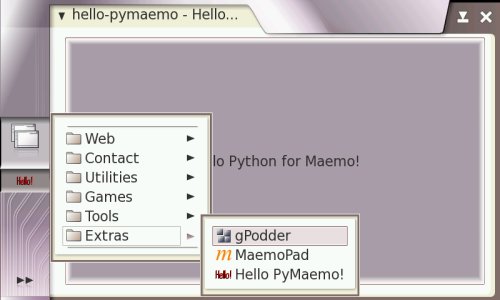
After you have run the command, the application is actually installed in your system (in Scratchbox, you have to run af-sb-init.sh restart before calling your application from the menu). You can access it from the Extras menu.
The problem with this approach is that if you want to remove the application, you have to manually delete every file from its corresponding directory, which is not practical. It is also not practical to distribute an application that way, since every user has to manually run the command (or a script that does it).
Instead, you can let the Application Installer take care of all these issues. To do that, you have to group all files in a Debian package.
For more information about Python Distribution Utilities, see Distributing Python Modules[4]. To get a basic knowledge of Distutils, reading Chapters 1 and 2 is strongly recommended.
When creating a Debian package, the first step is to put all files (the hello-pymaemo script, and the png, desktop and service files) in an empty directory called hello-pymaemo-1.0.0. The directory name must follow the <package-name>-<app-version> convention. This means that the package you are creating for the hello world application is called hello-pymaemo.
Note: there is a module that allows deb creation directly from setup.py here.
As Debian packages use makefiles (Makefile) instead of Python Distutils (setup.py), you have to write a Makefile to act as an interface between the Debian package system and the setup.py. The file is very simple; it merely issues commands to setup.py according to make's target. If you have no knowledge of make files, see Chapters 1 and 2 in GNU Make Manual[5].
Create a Makefile file with the following content (indentation with tabulators):
Type of package: single binary, multiple binary, library, or kernel module?  [s/m/l/k] s
Maintainer name : unknown
Email-Address   : your.email@somewhere.com
Date            : Thu, 18 May 2006 13:58:04 -0300
Package Name    : hello-pymaemo
Version         : 1.0.0
Type of Package : Single
Hit <enter> to confirm:
Done. Please edit the files in the debian/ subdirectory now.
You should also check that the hello-pymaemo Makefiles install into $DESTDIR and not in / .
Choose "single binary" as package type. In case the "--root $(DESTDIR)" part of the makefile is not clear to you, the last sentece in the output is meant to clarify the situation.
The dh_make command creates a debian subdirectory containing multiple configuration text files, most of which are templates that can be removed, since the application does not use them. In addition, the command makes a copy of the original directory, calling it hello-pymaemo-1.0.0.orig.
Table 2 lists the files needed in hello-pymaemo-1.0.0/debian (others can be removed):
Table 2. Required files for the example application package
File in ./debian
Description
changelog
Application's change log
compat
Debian helper compatibily version. Leave it as it is.
control
Describes the packages to be made. For more information, see the paragraphs below the table.
copyright
Copyright text. Fill in the blanks.
rules
A makefile containing the rules to build all kinds of packages (such as source and binary). For more information, see the paragraphs below the table.
The key files in ./debian are control and rules. They contain a generic template showing what they must look like. In control, you must simply fill in the blanks and, in rules, you essentially need to remove unwanted and unnecessary code.
The following example illustrates what the control file for the example application must contain:
Source: hello-pymaemo
Section: user/other
Priority: optional
Maintainer: My Name <your.email@somewhere.com>
Build-Depends: debhelper (>= 4.0.0), python2.5-dev
Standards-Version: 3.6.0

Package: hello-pymaemo
Architecture: all
Depends: python2.5, python2.5-hildon, python2.5-gtk2
Description: A simple "Hello Python for Maemo!"
 A very simple application consisting of a single button, containing the
 text "Hello Python for Maemo!".
XB-Maemo-Icon-26:
 iVBORw0KGgoAAAANSUhEUgAAABoAAAAaCAYAAACpSkzOAAAABmJLR0QA/wD/AP+g
 vaeTAAAACXBIWXMAAAsTAAALEwEAmpwYAAAAB3RJTUUH1gURDQoYya0JlwAAAU9J
 REFUSMftlL1KA0EUhb/NZl/ggnHQxsJUxt5CUucVJCCkDfgyKdIGG5/A0s5HEBtJ
 EdDAQGBgmw0YJmMzgXXYza5CtNkDW9zZw5z7c+ZCgwb/Ai3i9sVl/Bq8RIs4LRK1
 gJDsKvJyNXmJMuYTsMoY1zpgozaABdYArQNPZQ1kfyGU7SpqVwxzAMwABWhgpIwp
 4vWBB+AUWAI3ypjnfEXtPU4bLKx9vErTeCeiRSYF+fTn1j5dp2myE9EiU+DSi3wX
 ymeqRQAmZ3EcA5E/fgO6BULT8zhOcrwXoJdrXRa2Lgps2y2odAUcBUIXQdz78YyC
 SldAp8b7+bXrIv91qjZBietqCc2DjbAt4b2WxJkyZljVujlwp0U0cPxuLcAIuC+4
 dKxFlsDJarvdAGP/b6hFnDImYs+uG3hbO2AB3Jbsur63tQM+fFx3bzZocEB8AdV2
 gJBZgKTwAAAAAElFTkSuQmCC
The XB-Maemo-Icon-26 field contains the application icon file (in this case, hello_icon_26x26.png) encoded in base64. This is the icon that is shown in the Application Installer, next to the package name. To do this encoding in Linux, you can use either uuencode or openssl (there can be more suitable applications). Maemos's Scratchbox rootstrap is delivered with uuencode. Do not forget to put a white space at the beginning of each line containing the icon-encoded text. The white space serves as indentation. The same rule stands for the long package description ( A very simple application[...]).
The Application Installer only shows packages in the user section. Thus, your Section: field in the control file must have the Section: user/<SUBSECTION> syntax, where <SUBSECTION> is arbitrary.
The following example illustrates the rules file for the example application:
The main point is that the binary-arch target was emptied and the binary-indep filled, since the application being 100% Python means that it is 100% architecture-independent.
All the preliminary steps are now done, and you can build the Debian package itself with the following command:
The system displays some output, including a couple of warnings near the end of it (about XB-Maemo-Icon-26</code.) but that is normal. The parent directory now has a hello-pymaemo_1.0.0-1_all.deb file - your Debian package. This is the file that is distributed to Maemo devices and installed using the Application Installer.
You can install your package in scratchbox using the following command: