Documentation/Maemo 5 Final SDK/Using Finger Keyboard: Difference between revisions
From Maemo Wiki
Jump to navigationJump to search
imported>amigadave categorise |
imported>amigadave wikify slightly |
||
| Line 1: | Line 1: | ||
This article explains how to enable the virtual keyboard on the [[Nokia N900|N900]]. | |||
<ol> | |||
<li> | |||
Click on the application menu button. | |||
[[Image:desktop.png|frame|center|alt=Screenshot of the N900 desktop|N900 desktop]] | |||
</li> | |||
<li> | |||
Go to "Settings". | |||
[[Image:applications.png|frame|center|alt=Screenshot of the N900 apllication menu|Application menu]] | |||
</li> | |||
<li> | |||
Go to "Text input" settings. | |||
[[Image:settings2.png|frame|center|alt=Screenshot of the Settings application|Settings application]] | |||
</li> | |||
<li> | |||
Enable virtual keyboard and save the settings. | |||
[[Image:vkb1.png|frame|center|alt=Screenshot of text input settings dialog|Text input settings dialogue]] | |||
</li> | |||
<li> | |||
Now, clicking on any text field should pop up the virtual/finger keyboard. | |||
[[Image:vbk2.png|frame|center|alt=Screenshot of virtual keyboard|Virtual keyboard]] | |||
</li> | |||
</ol> | |||
[[Category:Documentation]] | [[Category:Documentation]] | ||
[[Category:Fremantle]] | [[Category:Fremantle]] | ||
Revision as of 12:20, 28 January 2011
This article explains how to enable the virtual keyboard on the N900.
-
Click on the application menu button.
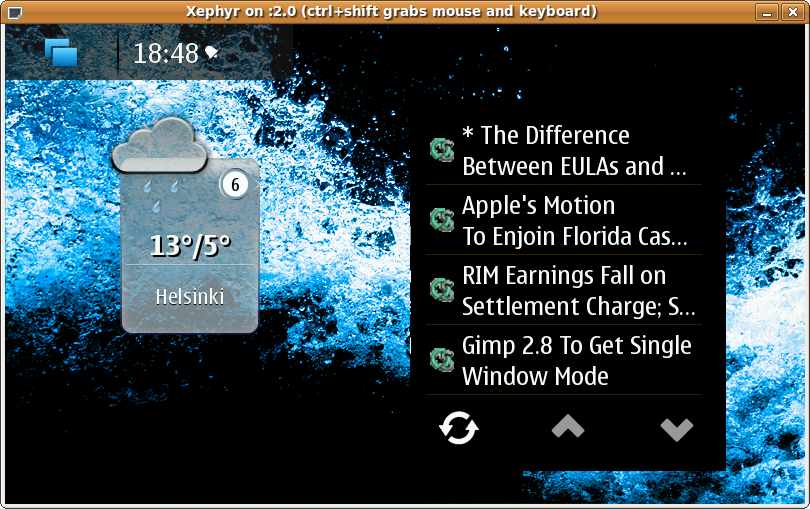
N900 desktop -
Go to "Settings".
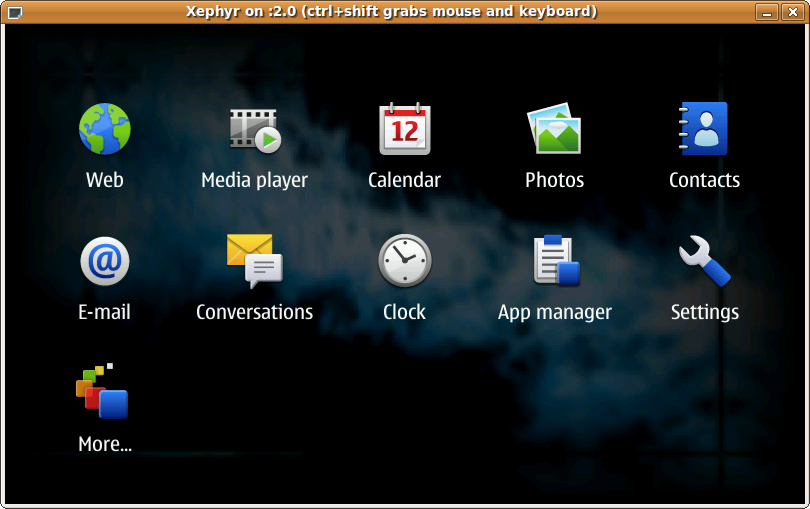
Application menu -
Go to "Text input" settings.
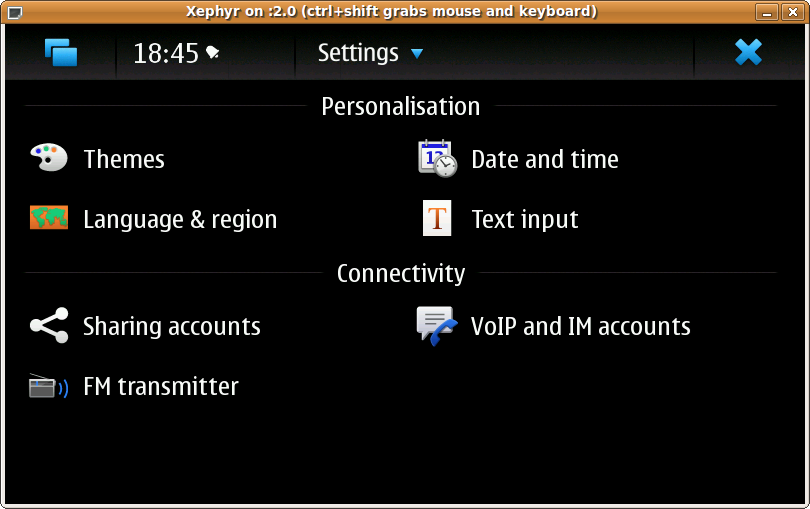
Settings application -
Enable virtual keyboard and save the settings.
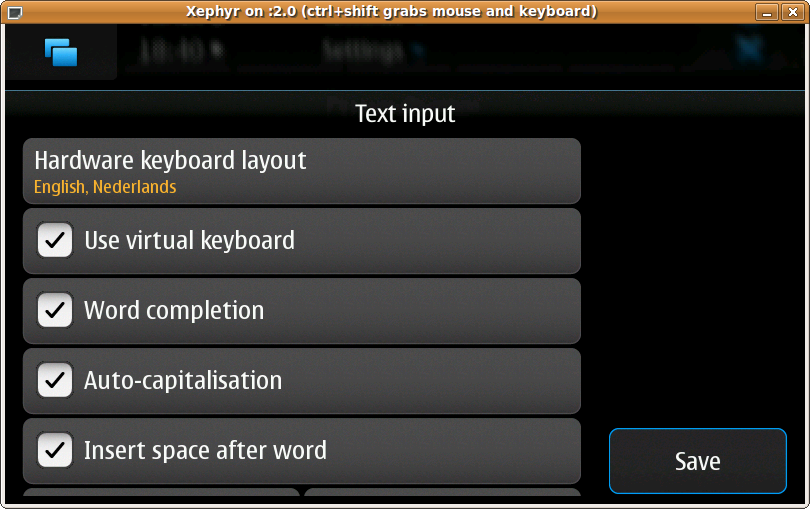
Text input settings dialogue -
Now, clicking on any text field should pop up the virtual/finger keyboard.
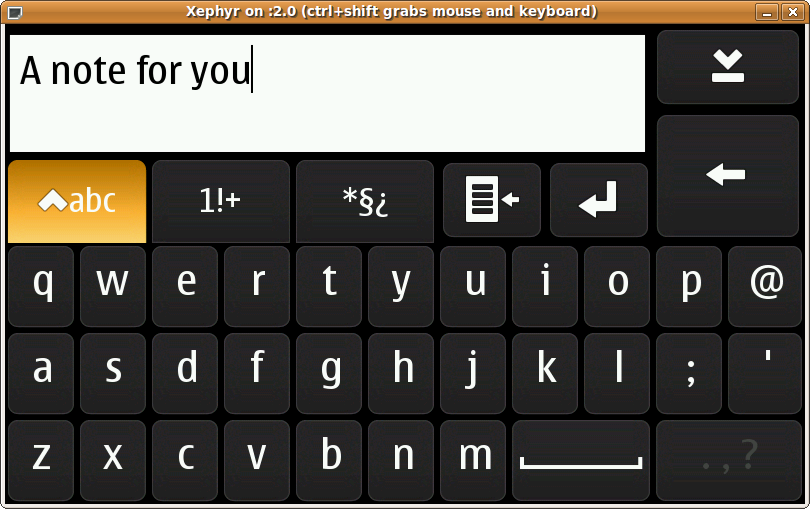
Virtual keyboard


